Youtube Video ( addtional video: how to setup on iphone )
The Apple Watch and eSIM: Staying Connected Without Your Phone
The Apple Watch isn’t just a gadget strapped to your wrist. For many, it’s a running companion, a reminder to move after sitting too long, or even a lifeline in emergencies. Now imagine it operating freely, without depending on your iPhone: calls, music, notifications — all available directly on your wrist. This guide explains how to set up an Apple Watch eSIM, which models support it, and why it changes how you stay connected.
What is an eSIM for the Apple Watch and what does it let you do?
An eSIM (embedded SIM) is a built-in chip inside your Apple Watch that connects it to your carrier’s cellular network. Unlike traditional SIM cards, there’s no physical slot — activation is digital.
With cellular service active, your Apple Watch can:
-
Make and receive calls or messages independently of your iPhone.
-
Deliver notifications while your phone charges elsewhere.
-
Stream music or podcasts on the go (speaker playback for streaming works only on Apple Watch Series 10 and Ultra 2).
-
Let you pay for purchases with Apple Pay when your phone isn’t handy.
Picture leaving your phone behind at home: a call from work lights up your wrist, or you quickly pay at a market stall with just a tap. The connection feels seamless, almost invisible.
Checking if Your Apple Watch Supports eSIM
Not all models are equipped for cellular. Here’s the breakdown:
-
Apple Watch Series 3 (2017) and later: Only GPS + Cellular models include eSIM.
-
Apple Watch SE (2020 and later): GPS + Cellular versions support it.
-
Apple Watch Ultra and Ultra 2: All models come ready.
-
Series 1 and 2: No cellular capability.
To check on your watch:
-
On watchOS 10 or later, press the side button to open Control Center and look for the cellular icon.
-
On older versions, swipe up from the bottom of the watch face.
Some earlier models also feature a red dot or ring on the digital crown, indicating eSIM capability.
How to Activate an eSIM on Your Apple Watch
Before setup, ensure you have:
-
An iPhone with eSIM already activated, running the latest iOS.
-
An Apple Watch Series 3 or later (or Ultra) with GPS + Cellular.
-
A carrier plan that supports Apple Watch eSIM activation.
Step 1: Pair your Apple Watch with iPhone
-
Open the Apple Watch app on your iPhone.
-
Tap Start Pairing and follow the prompts.
-
Choose to restore from backup or set up as new.
Step 2: Set up Cellular Data
-
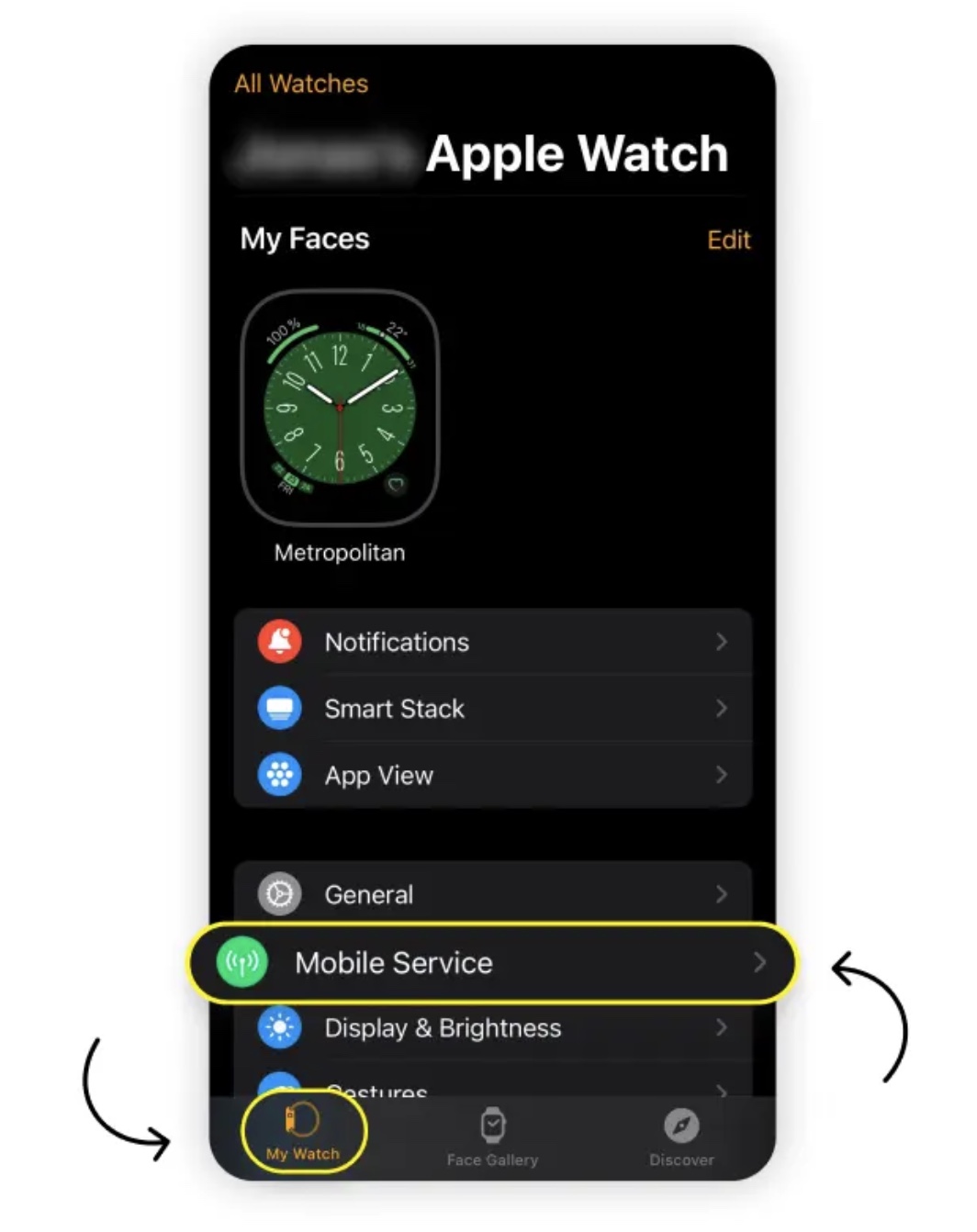
In the Apple Watch app, go to My Watch > Cellular.
-
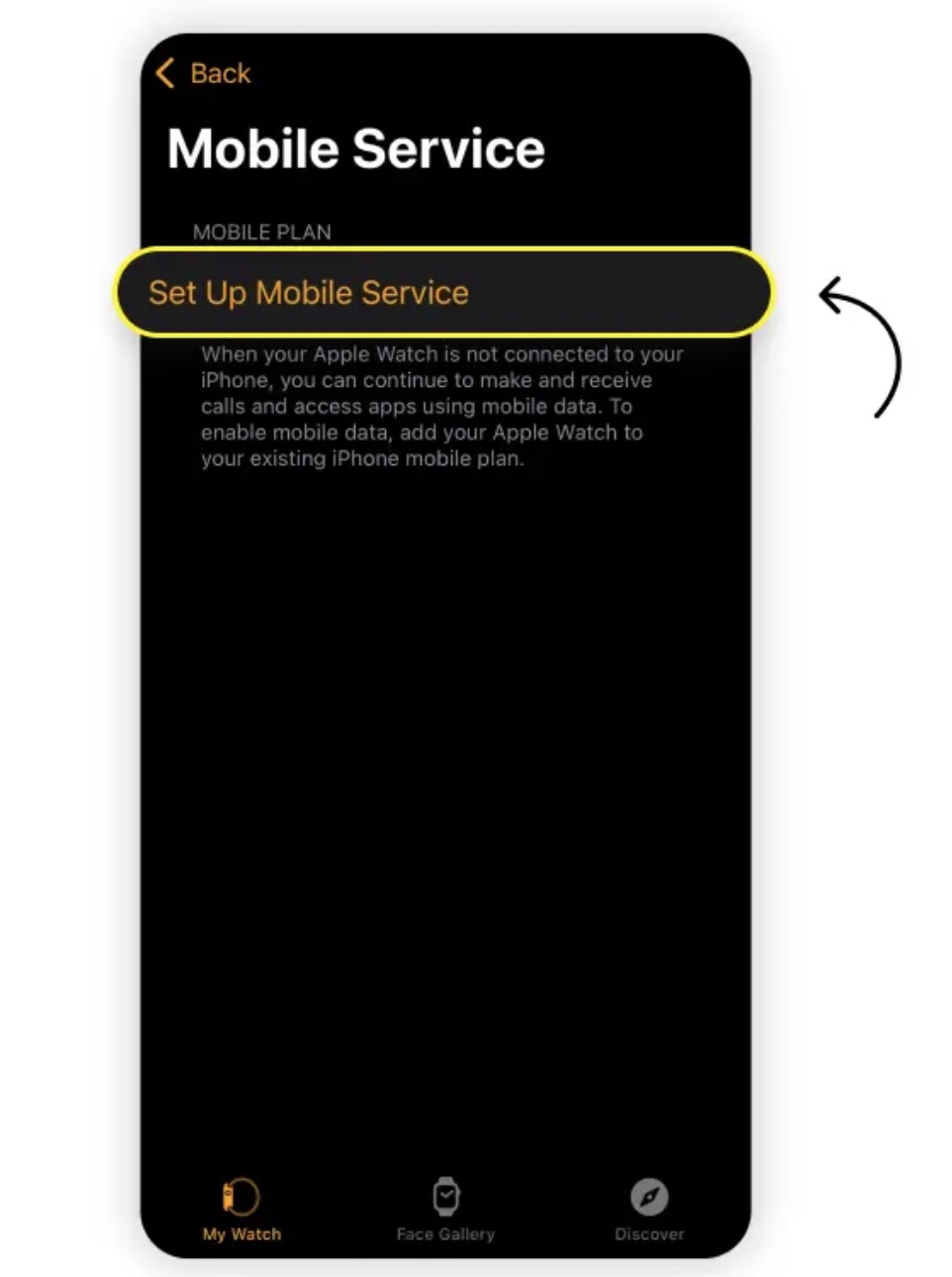
Tap Set Up Cellular.
-
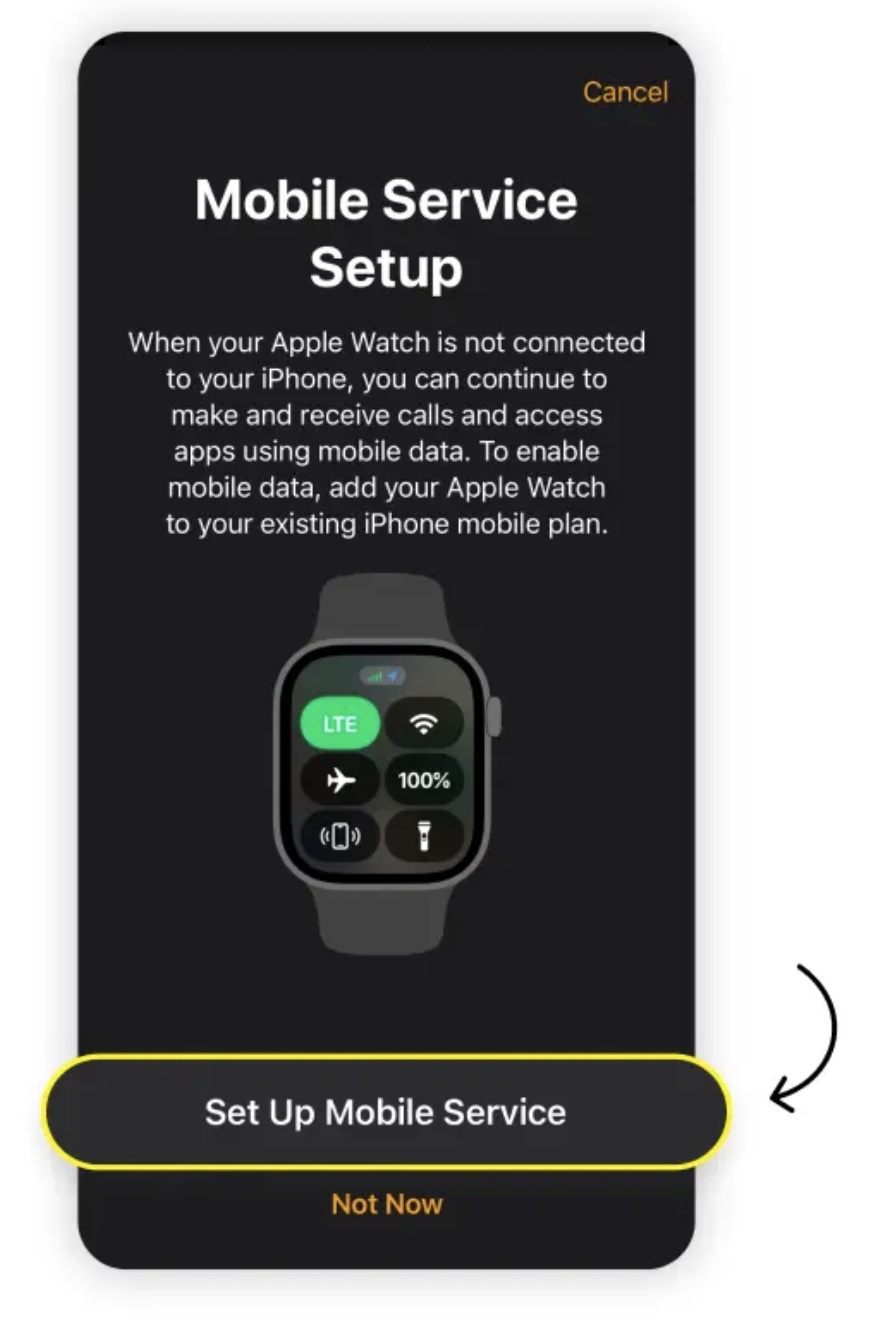
Follow your carrier’s instructions to activate.
Step 3: Verify connection
-
Open Control Center on your watch.
-
A green cellular icon means connected. White means standby or using Wi-Fi/iPhone.
How to Remove an eSIM from Apple Watch
If you upgrade, switch carriers, or pass your watch on:
-
On your iPhone, open the Apple Watch app.
-
Go to My Watch > Cellular.
-
Tap the “i” next to the plan and select Remove Plan.
This clears the eSIM profile, giving you a clean slate for future setup.
Moving an eSIM to a New Apple Watch
When upgrading:
-
Unpair your old watch — choose Keep Plan when prompted.
-
Pair your new watch in the Apple Watch app.
-
Go to My Watch > Cellular and follow carrier steps.
If the plan doesn’t transfer automatically, contact your carrier for assistance. Within minutes, your new watch will be ready for calls, texts, and data without your phone nearby.