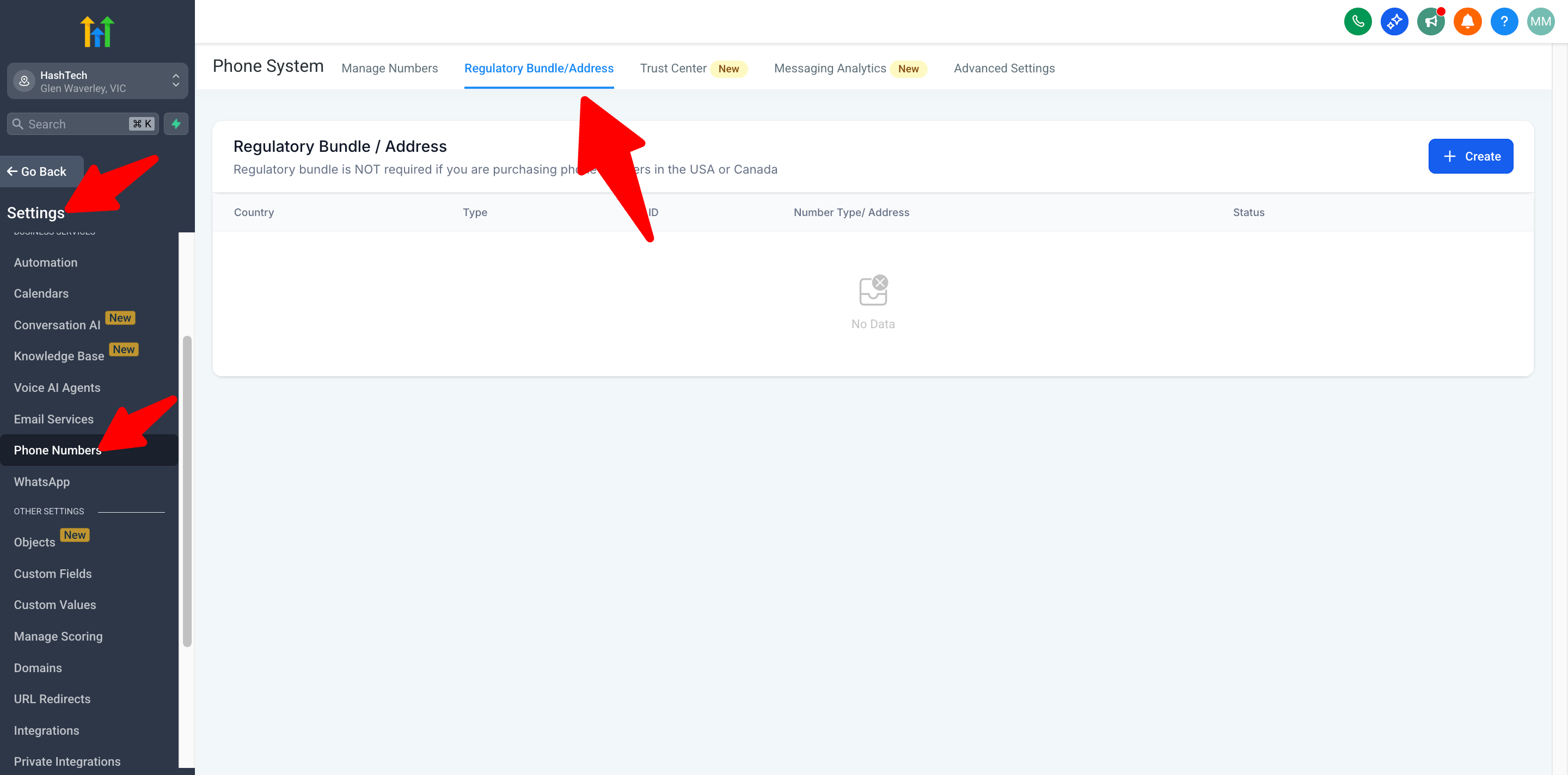
Here’s how to provision a new phone number in GoHighLevel:
-
Open Settings
-
In the left-hand sidebar click Settings (⚙️).
-
-
Go to Phone Numbers
-
Under Business Services, select Phone Numbers.
-
-
Manage Numbers
-
At the top, click the Manage Numbers tab to see your existing lines.
-
-
Add a Number
-
Click the + Create (or Add Number) button in the upper-right.
-
-
Search or Port
-
New number: Search by country/area code and pick an available DID.
-
Port-in: If you already own the number, choose “Port Number” and follow the porting workflow.
-
-
Fill in Regulatory Bundle / Address
-
After selecting your DID, switch to the Regulatory Bundle/Address tab.
-
For U.S. or Canadian numbers, enter your company’s legal information and service address.
-
(If you’re in a country that doesn’t require regulation, you can skip this step.)
-
-
Configure Call & SMS Routing
-
Go to Manage Numbers, click the gear icon next to your new number, and set:
-
Call Forwarding target (e.g. your GHL funnel or external phone)
-
SMS Forwarding webhook or email if enabled
-
-
-
Save & Activate
-
Review all details, then click Save or Activate.
-
Your number will provision within a few minutes—status will change to Active.
-
Tip:
If your account is brand-new, GoHighLevel may require that you verify your business address before provisioning international numbers. Always complete the regulatory bundle fully to avoid delays.